
Sign in and inspect
Use this tutorial before proposing a configuration change.
Prerequisites
Section titled “Prerequisites”- The management plane, Console, and at least one gateway node are running.
- You have the Console URL and a named installation account.
- The account has the role required for the work you intend to perform.
Do not share an account or put its password in YAML, shell history, screenshots, or issue reports.
1. Sign in
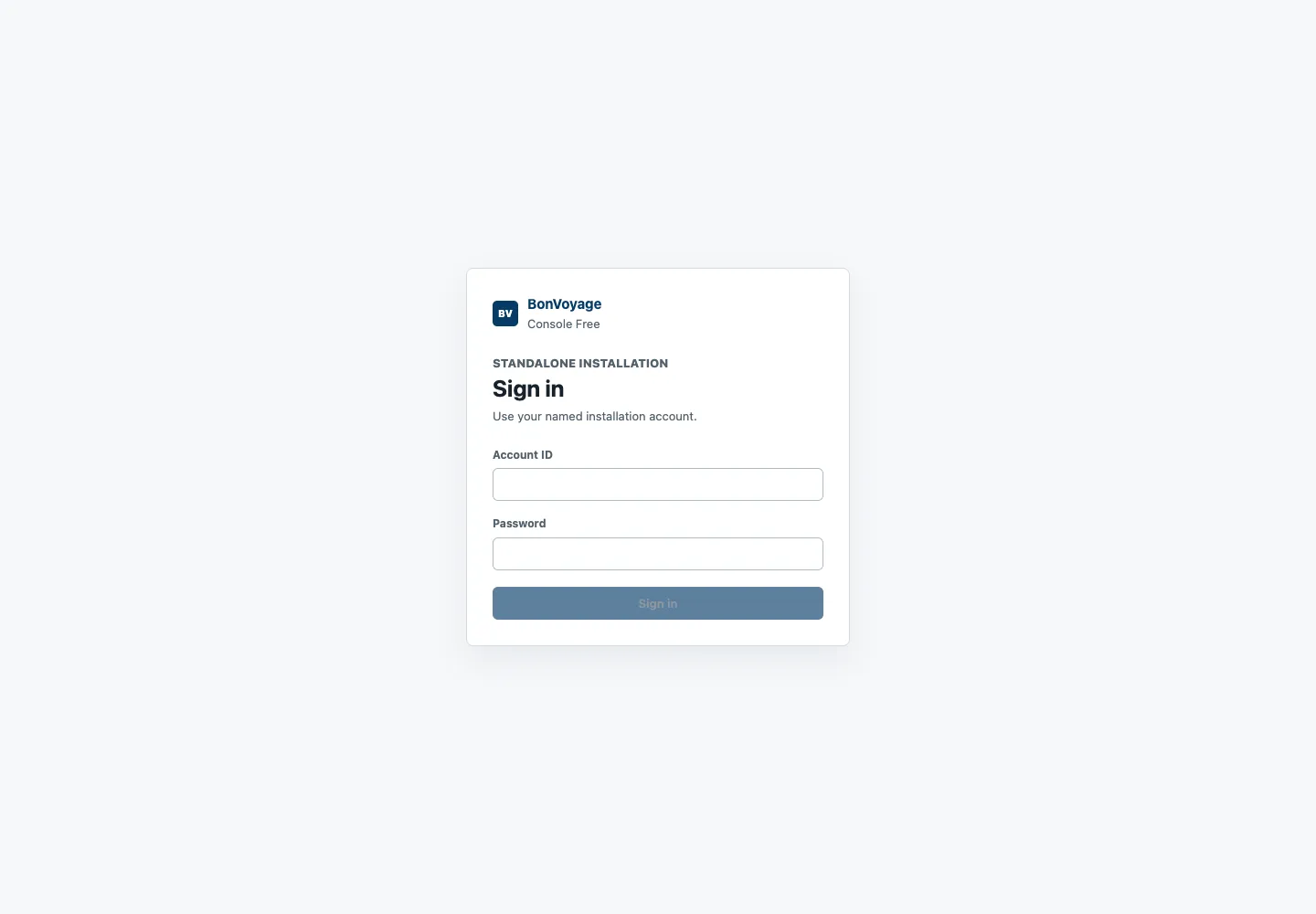
Section titled “1. Sign in”Open the Console URL supplied by the installation operator. Enter your Account ID and Password, then select Sign in.
After authentication, the top bar shows the account, role, and management-plane connection state. A green Connected badge means the Console can read the management API. It is not a gateway traffic-health result.
2. Confirm installation authority
Section titled “2. Confirm installation authority”Open Overview and check:
- Installation ready is visible;
- the expected number of gateway nodes is connected and reconciled;
- the active rollout and artifact identify the intended baseline; and
- no command is pending.
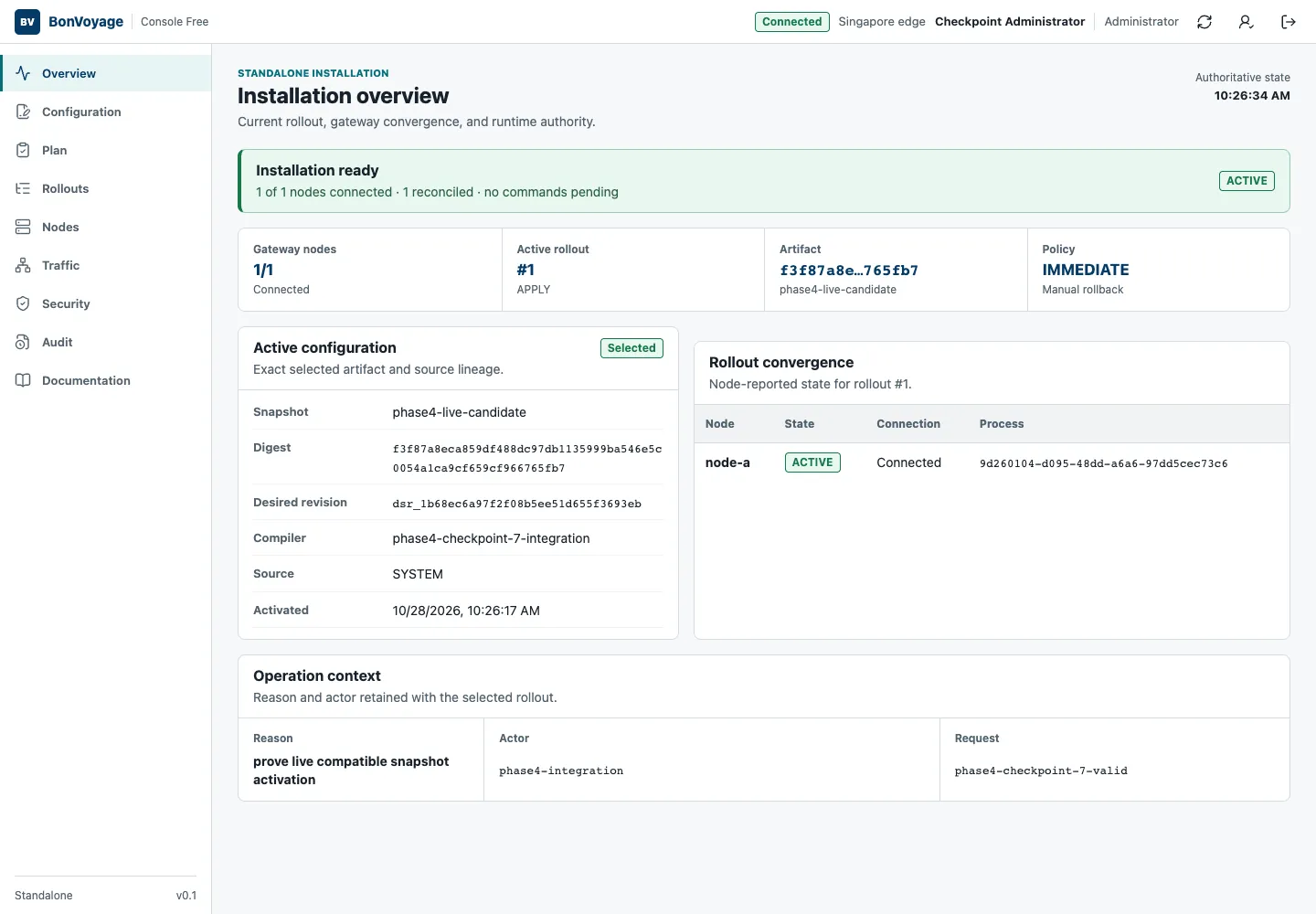
Stop and investigate if the active snapshot, node count, role, or installation identity is not the one you expected.
3. Inspect nodes and configuration
Section titled “3. Inspect nodes and configuration”Open Nodes and confirm that each intended target is connected, reconciled, and reports the expected process identity. Then open Configuration and review the active snapshot, artifact digest, schema version, routes, clusters, listeners, and policies.
The active state is authoritative. A draft in the editor is not active until a rollout completes and the node reports it.
4. Leave safely
Section titled “4. Leave safely”Use the sign-out icon in the top bar when the session is no longer needed. Reauthenticate only when a protected operation requires it; do not keep a privileged session open for convenience.
Next: Apply a configuration.